matplotlib

matplotlib基本使用汇总

简介

  • Matplotlib是Python的一个模块,是一个绘图库。
  • 官方网址
import matplotlib
print(matplotlib.__version__)
print(matplotlib.get_backend())

输入类型

  • 所有绘图函数都接收np.array或np.ma.masked_array作为输入。

%matplotlib inline

  • 如果使用Jupyter Notebook,命令%matplotlib inline确保图形将被描绘在文档内部而不是独立窗口

pyplot.plt()

使用

  • plt.plot(x, y, format_string,[label,color,alpha=1,linestyle,linewidth], **kwargs)
    • x : X轴数据,列表或数组,可选
    • y : Y轴数据,列表或数组
    • format_string: 控制曲线的格式字符串,可选
    • **kwargs : 第二组或更多(x,y,format_string)
  • 当绘制多条曲线时,各条曲线的x不能省略

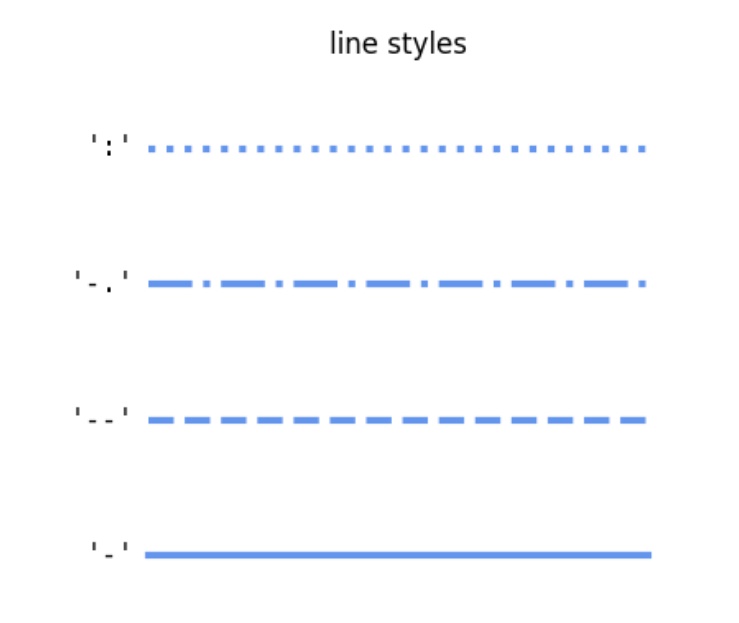
format_string线型风格字符

linestyle

线型风格字符 说明
‘-’ solid line style (实线)
‘–’ dashed line style (虚线)
‘-.’ dash-dot line style (点划线)
‘:’ dotted line style (点线)

线型风格

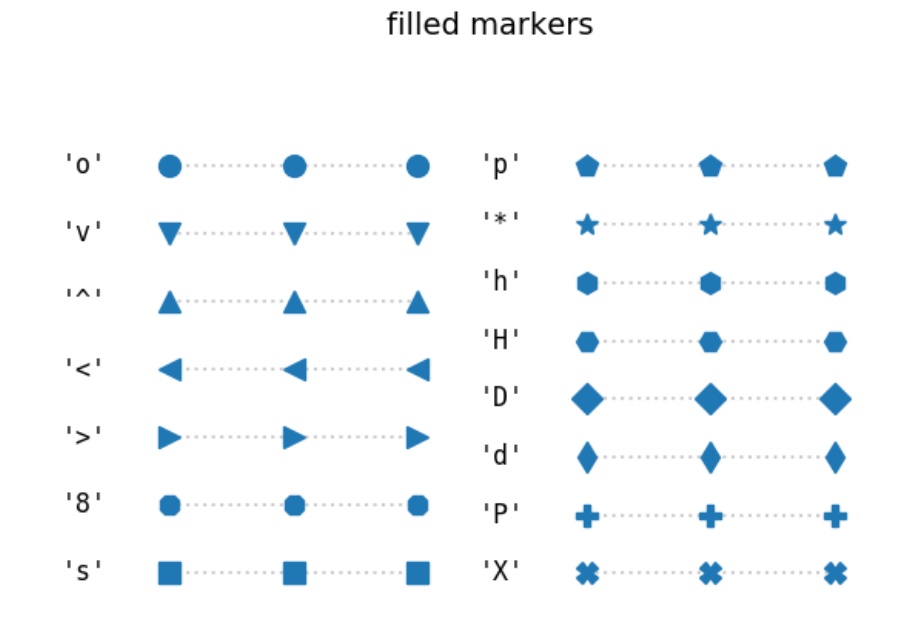
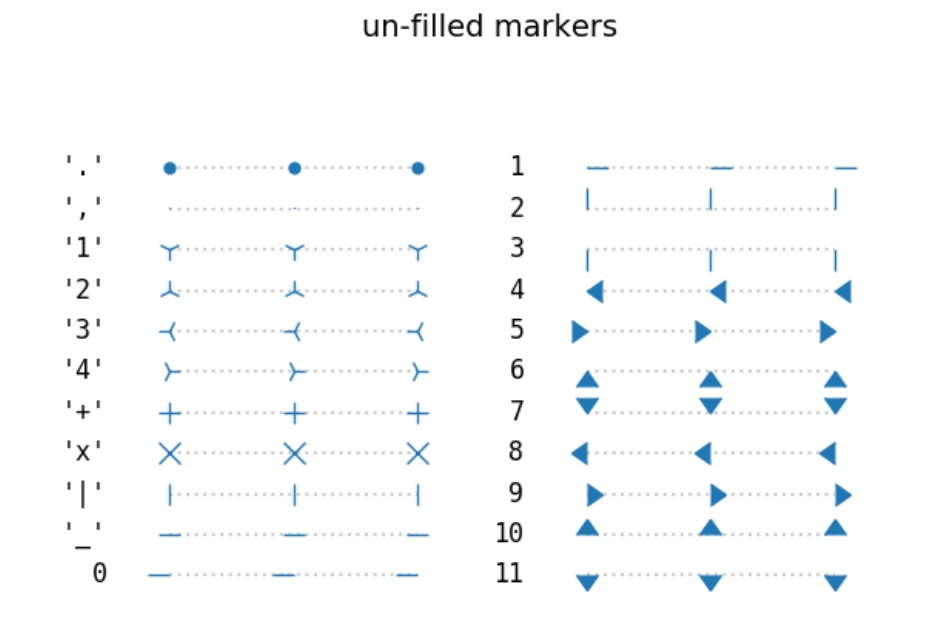
marker标记字符

标记字符 说明
‘.’ point marker
‘,’ pixel marker
‘o’ circle marker
‘v’ triangle_down marker
‘^’ triangle_up marker
‘<’ triangle_left marker
‘>’ triangle_right marker
‘1’ tri_down marker
‘2’ tri_up marker
‘3’ tri_left marker
‘4’ tri_right marker
‘s’ square marker
‘p’ pentagon marker
‘*’ star marker
‘h’ hexagon1 marker
‘H’ hexagon2 marker
‘+’ plus marker
‘x’ x marker
‘D’ diamond marker
‘d’ thin_diamond marker
‘|’ vline marker

填充
非填充

颜色字符

颜色字符 说明
‘b’ blue (蓝色)
‘g’ green (绿色)
‘r’ red (红色)
‘c’ cyan (青绿色)
‘m’ magenta (洋红色)
‘y’ yellow (黄色)
‘k’ black (黑色)
‘w’ 白色
‘#008000’ RGB某颜色
‘0.8’ 灰度值字符串
  • 风格字符、标记字符和颜色字符可以组合使用

轴标签

  • ylabel和xlabel
celsius_values = [25.6, 24.1, 26.7, 28.3, 27.5, 30.5, 32.8, 33.1]
plt.plot(days, celsius_values)
plt.xlabel('Day')
plt.ylabel('Degrees Celsius')
plt.show()

轴的范围

  • axis查看和定义轴的范围
celsius_min = [19.6, 24.1, 26.7, 28.3, 27.5, 30.5, 32.8, 33.1]
celsius_max = [24.8, 28.9, 31.3, 33.0, 34.9, 35.6, 38.4, 39.2]
plt.xlabel('Day')
plt.ylabel('Degrees Celsius')
plt.plot(days, celsius_min,days, celsius_min, "oy",
days, celsius_max,days, celsius_max, "or")
print(plt.axis())
xmin, xmax, ymin, ymax = 0, 10, 14, 45
print(xmin, xmax, ymin, ymax)
plt.axis([xmin, xmax, ymin, ymax])
plt.show()

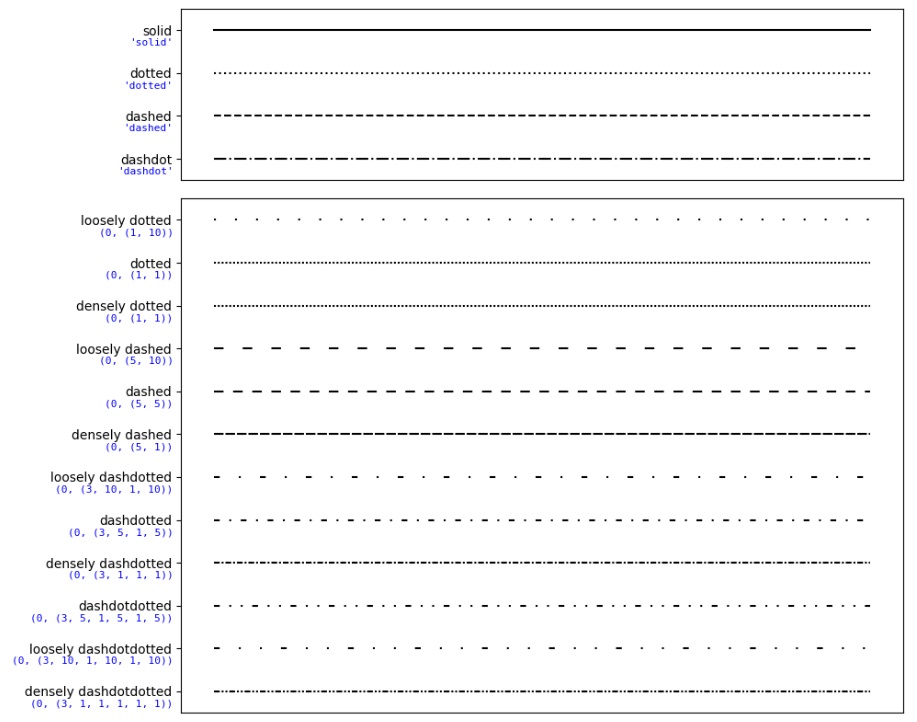
线型风格

  • linestyle可以设置更多的线型风格
X = np.linspace(0, 2 * np.pi, 50, endpoint=True)
F3 = 0.3 * np.sin(X)
plt.plot(X, F3, color="green", linewidth=2, linestyle=(0,(5,1)))

线型风格

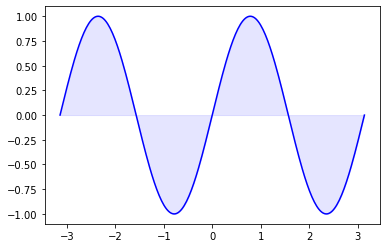
区域着色

  • fill_between(x, y1, y2=0, where=None, interpolate=False, **kwargs)

    • x x数据的N长度数组
    • y1 y数据的N长度数组(或标量)
    • y2 y数据的N长度数组(或标量)
    • where 如果是None,则默认在所有位置之间填充。 如果不是None,则它是一个N长度的numpy布尔数组,并且填充只会在where == True的区域上发生。
    • interpolate 如果为True,则在两条线之间进行插值以找到精确的交点。 否则,填充区域的起点和终点将仅出现在x数组中的显式值上。
    • kwargs 传递给PolyCollection
n = 256
X = np.linspace(-np.pi,np.pi,n,endpoint=True)
Y = np.sin(2*X)
plt.plot (X, Y, color='blue', alpha=1.00)
plt.fill_between(X, 0, Y, color='blue', alpha=.1)
plt.show()

区域着色

Spines

  • matplotlib中的Spine是连接轴刻度标记并指示数据区域边界的线。

  • 设置坐标轴位置,plt.gca()返回figure上的当前的axes实例。

X = np.linspace(-2 * np.pi, 2 * np.pi, 70, endpoint=True)
F1 = np.sin(2* X)
# get the current axes, creating them if necessary:
ax = plt.gca()
# making the top and right spine invisible:
ax.spines['top'].set_color('none') # 设置不可见
ax.spines['right'].set_color('none') # 设置不可见
# moving bottom spine up to y=0 position:
ax.xaxis.set_ticks_position('bottom') # 刻度位置
ax.spines['bottom'].set_position(('data',0)) # 轴位置
# moving left spine to the right to position x == 0:
ax.yaxis.set_ticks_position('left')
ax.spines['left'].set_position(('data',0))
plt.plot(X, F1)
plt.show()

坐标轴刻度

  • 使用xticks或yticks可获取或设置当前的刻度位置和标签
ax = plt.gca()
# 获取
locs, labels = plt.xticks()
locs, labels = plt.yticks()
# 设置位置
plt.xticks( np.arange(10) )
# 设置位置和标签
plt.xticks( np.arange(4),
('Berlin', 'London', 'Paris', 'Toronto') )
# LaTeX表示法设置标签
plt.xticks( [-6.28, -3.14, 3.14, 6.28],[r'$-2\pi$', r'$-\pi$', r'$+\pi$', r'$+2\pi$'])
  • 调整刻度标签
for xtick in ax.get_xticklabels():
print(xtick.get_text()) # 获取text
xtick.set_fontsize(18)
xtick.set_bbox(dict(facecolor='white', edgecolor='None', alpha=0.7 ))

添加图例

  • 图例(Legend)常在地图中使用。 Legend用来描述地图的图形语言或符号系统。
  • legend(*args, **kwargs)Matplotlib可以使用图例来解释图中函数或值的代表的含义。
x = np.linspace(0, 25, 1000);y1 = np.sin(x);y2 = np.cos(x);
plt.plot(x, y1, '-b', label='sine') # 显示plot标签
plt.plot(x, y2, '-r', label='cosine') # 显示plot标签
plt.legend(loc='upper left') # 位置参数
plt.ylim(-1.5, 2.0)
plt.show()
  • 在许多情况下,我们不知道在plot之前结果可能是什么样子。 例如,legend将使线条的重要部分蒙上阴影。 如果不知道数据的显示情况,最好使用’best’作为loc的参数。 Matplotlib将自动尝试为图例找到最佳位置
plt.legend(loc='best')

标题

  • pyplot.title(label, fontdict=None, loc=None, pad=None, **kwargs)
plt.title('Change of Celsius Degrees', size=11)

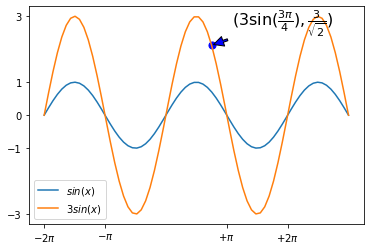
标注

  • annotate(label,xy,xytext,textcoords,fontsize,arrowprops)用于标出某一点在图中的位置
    • xy: coordinates of the arrow tip
    • xytext: coordinates of the text location
xycoords字符串值 坐标系统
‘figure points’ Points from the lower left of the figure
‘figure pixels’ Pixels from the lower left of the figure
‘figure fraction’ Fraction of figure from lower left
‘axes points’ Points from lower left corner of axes
‘axes pixels’ Pixels from lower left corner of axes
‘axes fraction’ Fraction of axes from lower left
‘data’ Use the coordinate system of the object being annotated (default)
‘polar’ (theta, r) if not native ‘data’ coordinates
arrowprops key 描述
width The width of the arrow in points
headwidth The width of the base of the arrow head in points
headlength The length of the arrow head in points
shrink Fraction of total length to shrink from both ends
**kwargs any key for matplotlib.patches.Polygon, e.g., facecolor
X = np.linspace(-2 * np.pi, 3 * np.pi, 70, endpoint=True)
F1 = np.sin(X)
F2 = 3 * np.sin(X)
ax = plt.gca()
plt.xticks( [-6.28, -3.14, 3.14, 6.28],
[r'$-2\pi$', r'$-\pi$', r'$+\pi$', r'$+2\pi$'])
plt.yticks([-3, -1, 0, +1, 3])
x = 3 * np.pi / 4
plt.scatter([x,],[3 * np.sin(x),], 50, color ='blue')
plt.annotate(r'$(3\sin(\frac{3\pi}{4}),\frac{3}{\sqrt{2}})$',
xy=(x, 3 * np.sin(x)),
xycoords='data',
xytext=(+20, +20),
textcoords='offset points',
fontsize=16,
arrowprops=dict(facecolor='blue', headwidth=10, headlength=10, width=2, shrink=0.1))
plt.plot(X, F1, label="$sin(x)$")
plt.plot(X, F2, label="$3 sin(x)$")
plt.legend(loc='lower left')
plt.show()

标注

网格线

plt.grid(color='b', alpha=0.5, linestyle='dashed', linewidth=1.0)

中文字体

  • Matplotlib默认是不支持显示中文字符的,可以使用 rc 配置(rcParams)来自定义图形的各种默认属性。

  • Windows操作系统支持的中文字体和代码:

字体 代码
黑体 SimHei
仿宋 FangSong
楷体 KaiTi
微软雅黑 Microsoft YaHei
宋体 SimSun
隶书 LiSu
幼圆 YouYuan
华文细黑 STXihei
华文楷体 STKaiti
华文宋体 STSong
华文中宋 STZhongsong
华文仿宋 STFangsong
方正舒体 FZShuTi
方正姚体 FZYaoti
华文彩云 STCaiyun
华文琥珀 STHupo
华文隶书 STLiti
华文行楷 STXingkai
华文新魏 STXinwei
  • 配置方法:
    plt.rcParams['font.family'] = ['sans-serif'] plt.rcParams['font.sans-serif'] = ['SimHei']
# 全局设置:在jupyter notebook 中,设置下面两行来显示中文
plt.rcParams['font.family'] = ['sans-serif']
# 在 PyCharm 中,只需要下面一行
plt.rcParams['font.sans-serif'] = ['SimHei']
# 单独设置:在每一处使用到中文输出的地方,都加上一个字体属性fontproperties
plt.xlabel('日期', fontproperties='SimHei', size=16)
plt.ylabel('摄氏度', fontproperties='SimHei', size=16)
plt.title('温度变化', fontproperties='SimHei', size=16)

保存图形

  • fig.savefig("filename.png")
fig = plt.figure()
plt.plot([0, 1, 2, 3, 4], [0, 3, 5, 9, 11])
plt.xlabel('Months')
plt.ylabel('Books Read')
plt.show()
fig.savefig('books_read.png')

加载图形

import matplotlib.image as mpimg
img = mpimg.imread('books_read.png')
plt.imshow(img)

高质量svg矢量图输出

  • Jupyter Notebook中显示svg矢量图的设置: %config InlineBackend.figure_format = ‘svg’

  • 保存svg矢量图

%config InlineBackend.figure_format = 'svg'
fig = plt.figure()
fig.savefig('celsius_degrees.svg') # 设置保存格式

面向对象的API绘图

  • Matplotlib绘图库的操作是通过API实现的,一种操作方法是类似MATLAB的函数接口的API;另一种操作方法是面向对象的API。这两种API可以并行使用,不过函数接口的API的易用性明显好于面向对象的API。
# --------------面向对象------------------
fig = plt.figure() # 实例化对象
X = np.arange(0,10)
Y = np.random.randint(1,20, size=10)
left, bottom, width, height = 0.1, 0.1, 0.8, 0.8
axes = fig.add_axes([left, bottom, width, height]) # 创建轴的实例
axes.plot(X, Y, 'b')
axes.set_xlabel('x')
axes.set_ylabel('y')
axes.set_title('title')
plt.show(fig)
# ----------------调用函数----------------
X = np.arange(0,10)
Y = np.random.randint(1,20, size=10)
plt.plot(X, Y, 'b')
plt.xlabel('x')
plt.ylabel('y')
plt.title('title')
plt.show()

使用实例对象绘制图中图

fig = plt.figure()
X = [1, 2, 3, 4, 5, 6, 7]
Y = [1, 3, 4, 2, 5, 8, 6]
axes1 = fig.add_axes([0.1, 0.1, 0.9, 0.9]) # main axes
# add_axes 参数rect The dimensions [left, bottom, width, height] of the new axes.
# All quantities are in fractions of figure width and height.
axes2 = fig.add_axes([0.2, 0.6, 0.4, 0.3]) # inside axes
# main figure
axes1.plot(X, Y, 'r')
axes1.set_xlabel('x')
axes1.set_ylabel('y')
axes1.set_title('title')
# insert
axes2.plot(Y, X, 'g')
axes2.set_xlabel('y')
axes2.set_ylabel('x')
axes2.set_title('title inside')

设定绘图范围

  • set_ylimset_xlim:配置轴的范围可以通过在轴对象中使用set_ylim和set_xlim方法来完成
  • 使用axis(‘tight’),可以自动创建"tightly fitted" 的轴范围:
fig, axes = plt.subplots(1, 3, figsize=(10, 4))
# axes[0] default axes ranges
axes[1].axis('tight')
axes[2].set_ylim([0, 60])
axes[2].set_xlim([2, 5])

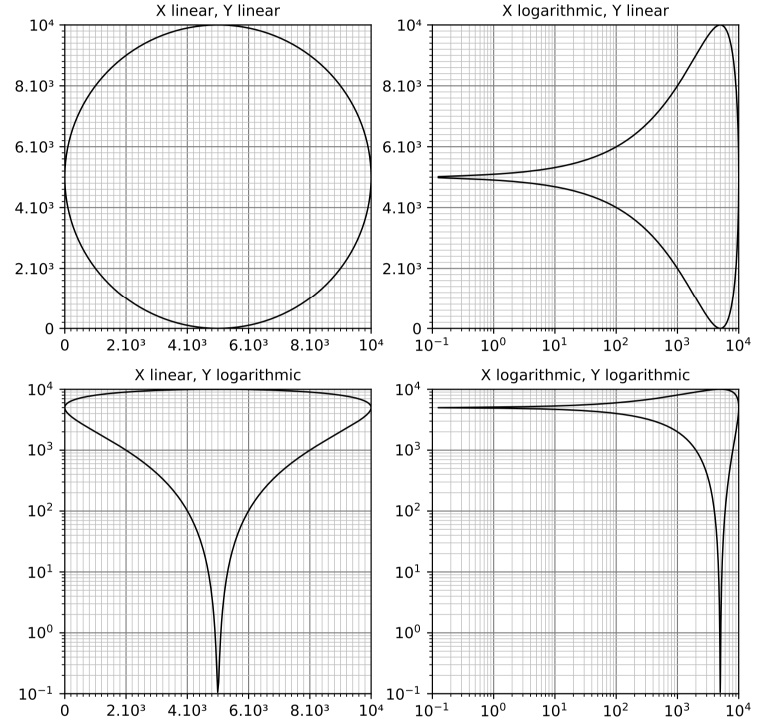
Logarithmic Scale对数尺度

  • set_xscale和set_yscale
  • 可以为一个或两个轴设置对数尺度,默认是线型尺度
  • 使用接受一个参数(值为log)的set_xscale和set_yscale方法分别设置每个轴的scale
对数尺度

fig = plt.figure()
ax = fig.add_subplot(1, 1, 1)
x = np.arange(0, 5, 0.25)
ax.plot(x, x**2, x, x**3)
ax.set_yscale("log")
plt.show()

多子图

subplot

  • subplot(nrows, ncols, plot_number) nrows * ncols个子轴
  • 参数plot_number标识函数调用创建的subplot。 plot_number的范围可以从1到最大nrows * ncols。
  • 如果三个参数的值小于10,则可以使用一个int参数调用函数subplot,其中百位数表示nrows,十位数表示ncols,个位数表示plot_number。 这意味着:可以写subplot(234)来代替subplot(2, 3, 4) 。
plt.figure(figsize=(6, 4))
plt.subplot(221)
plt.text(0.5, # x coordinate, 0 leftmost positioned, 1 rightmost
0.5, # y coordinate, 0 topmost positioned, 1 bottommost
'subplot(2,2,1)', # the text which will be printed
horizontalalignment='center', # shortcut 'ha'
verticalalignment='center', # shortcut 'va'
fontsize=20, # can be named 'font' as well
alpha=.7 # float (0.0 transparent through 1.0 opaque)
)
python_course_green = "#90EE90"
plt.subplot(224, facecolor=python_course_green)
plt.xticks(()) # 去除刻度
plt.yticks(())
plt.text(0.5, 0.5,
'subplot(2,2,4)',
ha='center', va='center',
fontsize=20,
color="b")
  • add_subplot()面向对象的方法
fig = plt.figure(figsize=(6, 4))
sub1 = fig.add_subplot(221) # equivalent to: plt.subplot(2, 2, 1)
sub1.text(0.5, # x coordinate, 0 leftmost positioned, 1 rightmost
0.5, # y coordinate, 0 topmost positioned, 1 bottommost
'subplot(2,2,1)', # the text which will be printed
horizontalalignment='center', # shortcut 'ha'
verticalalignment='center', # shortcut 'va'
fontsize=20, # can be named 'font' as well
alpha=.7 # float (0.0 transparent through 1.0 opaque)
)
python_course_green = "#90EE90"
sub2 = fig.add_subplot(224, facecolor=python_course_green)
sub2.text(0.5, 0.5,
'subplot(2,2,4)',
ha='center', va='center',
fontsize=20,
color="b")
sub2.set_xticks([])
sub2.set_yticks([])
sub4 = fig.add_subplot(224, facecolor="lightgrey")
sub4.plot(x, y)
plt.plot(x, y)
plt.tight_layout()
plt.show()
import matplotlib.pyplot as plt
fig =plt.figure(figsize=(6,4))
fig.subplots_adjust(bottom=0.025, left=0.025, top = 0.975, right=0.975) # 调整大小
X = [ (2,1,1), (2,3,4), (2,3,5), (2,3,6) ] # 211合并了一整行
for nrows, ncols, plot_number in X:
plt.subplot(nrows, ncols, plot_number)
sub.set_xticks([])
sub.set_yticks([])
# -----------元组的形式-------------
X = [ (2,3,(1,3)), (2,3,4), (2,3,5), (2,3,6) ]
for nrows, ncols, plot_number in X:
sub = fig.add_subplot(nrows, ncols, plot_number)
sub.set_xticks([])
sub.set_yticks([])

gridspec

  • GridSpec类。 它可以替代subplot来指定要创建的子图的几何布局。 GridSpec背后的基本思想是“grid”。 一个grid(网格)有多个行和列。 必须在此之后定义一个subplot应该跨越多少网格。
import matplotlib.pyplot as plt
from matplotlib.gridspec import GridSpec
fig = plt.figure()
# 定义图形从可用figure区域的底部的20%、左侧的15%开始
gs = GridSpec(1, 1,
bottom=0.2,
left=0.15,
top=0.8)
ax = fig.add_subplot(gs[0,0])
plt.show()
  • 精细化设置
  • figsize(float, float): optional, default: None
    • width, height in inches. If not provided, defaults to rcParams[“figure.figsize”] (default: [6.4, 4.8]) = [6.4, 4.8].
import matplotlib.gridspec as gridspec
import matplotlib.pyplot as pl
pl.figure(figsize=(6, 4))
G = gridspec.GridSpec(3, 3) # 定义3*3大小
axes_1 = pl.subplot(G[0, :]) # 占据0行,3列
pl.text(0.5, 0.5, 'Axes 1', ha='center', va='center', size=24, alpha=.5)
axes_2 = pl.subplot(G[1, :-1]) # 占据1行前2列
pl.text(0.5, 0.5, 'Axes 2', ha='center', va='center', size=24, alpha=.5)
axes_3 = pl.subplot(G[1:, -1]) # 占据1行到最后一行得最后1列
pl.text(0.5, 0.5, 'Axes 3', ha='center', va='center', size=24, alpha=.5)
axes_4 = pl.subplot(G[-1, 0]) # 占据最后1行0列
pl.text(0.5, 0.5, 'Axes 4', ha='center', va='center', size=24, alpha=.5)
axes_5 = pl.subplot(G[-1, -2]) # 占据最后一行导数第二列
pl.text(0.5, 0.5, 'Axes 5', ha='center', va='center', size=24, alpha=.5)
pl.tight_layout()
pl.show()

更多图形种类

条形图

import matplotlib.pyplot as plt
import numpy as np
years = ('2015', '2016', '2017', '2018', '2019')
visitors = (1241, 50927, 162242, 222093, 296665 / 8 * 12)
index = np.arange(len(visitors))
bar_width = 1.0
plt.bar(index, visitors, bar_width, color="green")
plt.xticks(index + bar_width / 2, years) # labels get centered
plt.show()
  • 分组条形图
labels = ['G1', 'G2', 'G3', 'G4', 'G5']
men_means = [20, 34, 30, 35, 27]
women_means = [25, 32, 34, 20, 25]
x = np.arange(len(labels)) # the label locations
width = 0.35 # the width of the bars
fig, ax = plt.subplots()
rects1 = ax.bar(x - width/2, men_means, width, label='Men')
rects2 = ax.bar(x + width/2, women_means, width, label='Women')
# Add some text for labels, title and custom x-axis tick labels, etc.
ax.set_ylabel('Scores')
ax.set_title('Scores by group and gender')
ax.set_xticks(x)
ax.set_xticklabels(labels)
ax.legend()
def autolabel(rects):
"""Attach a text label above each bar in *rects*, displaying its height."""
for rect in rects:
height = rect.get_height()
ax.annotate('{}'.format(height),
xy=(rect.get_x() + rect.get_width() / 2, height),
xytext=(0, 3), # 3 points vertical offset
textcoords="offset points",
ha='center', va='bottom')
autolabel(rects1)
autolabel(rects2)
fig.tight_layout()
plt.show()
  • 堆叠条形图
import matplotlib.pyplot as plt
labels = ['G1', 'G2', 'G3', 'G4', 'G5']
men_means = [20, 35, 30, 35, 27]
women_means = [25, 32, 34, 20, 25]
men_std = [2, 3, 4, 1, 2]
women_std = [3, 5, 2, 3, 3]
width = 0.35 # the width of the bars: can also be len(x) sequence
fig, ax = plt.subplots()
ax.bar(labels, men_means, width, yerr=men_std, label='Men')
ax.bar(labels, women_means, width, yerr=women_std, bottom=men_means,
label='Women')
ax.set_ylabel('Scores')
ax.set_title('Scores by group and gender')
ax.legend()
plt.show()

饼图

import matplotlib.pyplot as plt
# Pie chart, where the slices will be ordered and plotted counter-clockwise:
labels = 'Frogs', 'Hogs', 'Dogs', 'Logs'
sizes = [15, 30, 45, 10]
explode = (0, 0.1, 0, 0) # only "explode" the 2nd slice (i.e. 'Hogs')
fig1, ax1 = plt.subplots()
ax1.pie(sizes, explode=explode, labels=labels, autopct='%1.1f%%',
shadow=True, startangle=90)
ax1.axis('equal') # Equal aspect ratio ensures that pie is drawn as a circle.
plt.show()
参数 说明
x (每一块)的比例,如果sum(x) > 1会使用sum(x)归一化;
labels (每一块)饼图外侧显示的说明文字;
explode (每一块)离开中心距离;
startangle 起始绘制角度,默认图是从x轴正方向逆时针画起,如设定=90则从y轴正方向画起;
shadow 在饼图下面画一个阴影。默认值:False,即不画阴影;
labeldistance label标记的绘制位置,相对于半径的比例,默认值为1.1, 如<1则绘制在饼图内侧;
autopct 控制饼图内百分比设置,可以使用format字符串或者format function;’%1.1f’指小数点前后位数(没有用空格补齐);
pctdistance 类似于labeldistance,指定autopct的位置刻度,默认值为0.6;
radius 控制饼图半径,默认值为1;counterclock :指定指针方向;布尔值,可选参数,默认为:True,即逆时针。将值改为False即可改为顺时针。
wedgeprops 字典类型,可选参数,默认值:None。参数字典传递给wedge对象用来画一个饼图。例如:wedgeprops={‘linewidth’:3}设置wedge线宽为3。
textprops 设置标签(labels)和比例文字的格式;字典类型,可选参数,默认值为:None。传递给text对象的字典参数。
center 浮点类型的列表,可选参数,默认值:(0,0)。图标中心位置。
frame 布尔类型,可选参数,默认值:False。如果是true,绘制带有表的轴框架。
rotatelabels 布尔类型,可选参数,默认为:False。如果为True,旋转每个label到指定的角度。
  • 甜甜圈图
my_circle = plt.Circle((0, 0), 0.7, color='white')
d = plt.pie(sizes, labels=labels, autopct='%1.1f%%',
startangle=90, labeldistance=1.05)
plt.axis('equal')
plt.gca().add_artist(my_circle)
plt.show()
  • 嵌套饼图
labels = ['vegetable', 'fruit']
sizes = [300, 200]
labels_vegefruit = ['potato', 'tomato', 'onion', 'apple',
'banana', 'cherry', 'durian']
sizes_vegefruit = [170, 70, 60, 70, 60, 50, 20]
colors = ['#FFB600', '#09A0DA']
colors_vegefruit = ['#FFCE53', '#FFDA7E', '#FFE9B2', '#30B7EA',
'#56C7F2','#7FD6F7', '#B3E7FB']
bigger = plt.pie(sizes, labels=labels, colors=colors,
startangle=90, frame=True)
smaller = plt.pie(sizes_vegefruit, labels=labels_vegefruit,
colors=colors_vegefruit, radius=0.7,
startangle=90, labeldistance=0.7)
centre_circle = plt.Circle((0, 0), 0.4, color='white', linewidth=0)
fig = plt.gcf()
fig.gca().add_artist(centre_circle)
plt.axis('equal')
plt.tight_layout()
plt.show()

散点图

%matplotlib inline
%config InlineBackend.figure_format = 'svg'
import numpy as np
import matplotlib.pyplot as plt
plt.scatter(x=range(77, 770, 10),
y=np.random.randn(70)*55+range(77, 770, 10),
s=200, alpha=0.6)
plt.tick_params(labelsize=12)
plt.xlabel('Surface(m2)', size=12)
plt.ylabel('Turnover (K dollars)', size=12)
plt.xlim(left=0)
plt.ylim(bottom=0)
plt.show()
  • 连接散点图
turnover = [30, 38, 26, 20, 21, 15, 8, 5, 3, 9, 25, 27]
plt.plot(np.arange(12), turnover, marker='o')
plt.show()
  • 气泡图
nbclients = range(10, 494, 7)
plt.scatter(x=range(77, 770, 10),
y=np.random.randn(70)*55+range(77, 770, 10),
s=nbclients, alpha=0.6)
plt.show()
  • 不同颜色的散点图
plt.scatter(x=range(40, 70, 1),
y=np.abs(np.random.randn(30)*20),
s=200,
#c = 'blue',
alpha=0.6,
label='40-69')
plt.scatter(x=range(20, 40, 1),
y=np.abs(np.random.randn(20)*40),
s=200,
#c = 'red',
alpha=0.6,
label='20-39')
plt.legend() # 每次都要执行
plt.show()

直方图

%matplotlib inline
%config InlineBackend.figure_format = 'svg'
import matplotlib.pyplot as plt
import numpy as np
gaussian_numbers = np.random.normal(size=10000)
plt.hist(gaussian_numbers)
plt.title("Gaussian Histogram")
plt.xlabel("Value")
plt.ylabel("Frequency")
plt.show()

等值线图

%matplotlib inline
%config InlineBackend.figure_format = 'svg'
import matplotlib
import numpy as np
import matplotlib.cm as cm
import matplotlib.pyplot as plt


delta = 0.025
x = np.arange(-3.0, 3.0, delta)
y = np.arange(-2.0, 2.0, delta)
X, Y = np.meshgrid(x, y)
Z1 = np.exp(-X**2 - Y**2)
Z2 = np.exp(-(X - 1)**2 - (Y - 1)**2)
Z = (Z1 - Z2) * 2
fig, ax = plt.subplots()
CS = ax.contour(X, Y, Z)
ax.clabel(CS, inline=1, fontsize=10)
ax.set_title('Simplest default with labels')

盒须图

%matplotlib inline
%config InlineBackend.figure_format = 'svg'
import matplotlib
import matplotlib.pyplot as plt

# Fixing random state for reproducibility
np.random.seed(19680801)

# fake up some data
spread = np.random.rand(50) * 100
center = np.ones(25) * 50
flier_high = np.random.rand(10) * 100 + 100
flier_low = np.random.rand(10) * -100
data = np.concatenate((spread, center, flier_high, flier_low))
fig1, ax1 = plt.subplots()
ax1.set_title('Basic Plot')
ax1.boxplot(data)

棉棒图

%matplotlib inline
%config InlineBackend.figure_format = 'svg'
import matplotlib.pyplot as plt
import numpy as np
x = np.linspace(0.1, 2 * np.pi, 41)
y = np.exp(np.sin(x))
plt.stem(x, y, use_line_collection=True)
plt.show()

极坐标图

import numpy as np
import matplotlib.pyplot as plt
# 极坐标下需要的数据有极径和角度
r = np.arange(1,6,1) # 极径
theta = [i*np.pi/2 for i in range(5)] #角度
# 指定画图坐标为极坐标,projection='polar'
ax = plt.subplot(111, projection='polar')
ax.plot(theta,r,linewidth=3,color='r')
ax.grid(True)
plt.show()

雷达图

# Libraries
import matplotlib.pyplot as plt
import pandas as pd
from math import pi
# Set data
df = pd.DataFrame({
'group': ['A','B','C','D'],
'var1': [38, 1.5, 30, 4],
'var2': [29, 10, 9, 34],
'var3': [8, 39, 23, 24],
'var4': [7, 31, 33, 14],
'var5': [28, 15, 32, 14]
})
# number of variable
categories=list(df)[1:]
N = len(categories)
# We are going to plot the first line of the data frame.
# But we need to repeat the first value to close the circular graph:
values=df.loc[0].drop('group').values.flatten().tolist()
values += values[:1]
# What will be the angle of each axis in the plot? (we divide the plot / number of variable)
angles = [n / float(N) * 2 * pi for n in range(N)]
angles += angles[:1]
# Initialise the spider plot
ax = plt.subplot(111, polar=True)
# Draw one axe per variable + add labels labels yet
plt.xticks(angles[:-1], categories, color='grey', size=8)
# Draw ylabels
ax.set_rlabel_position(0)
plt.yticks([10,20,30], ["10","20","30"], color="grey", size=7)
plt.ylim(0,40)
# Plot data
ax.plot(angles, values, linewidth=1, linestyle='solid')
# Fill area
ax.fill(angles, values, 'b', alpha=0.1)

极区图

import numpy as np
import matplotlib.pyplot as plt
# Fixing random state for reproducibility
np.random.seed(19680801)
# Compute pie slices
N = 10
theta = np.linspace(0.0, 2 * np.pi, N, endpoint=False)
radii = 10 * np.random.rand(N)
width = np.pi / 4 * np.random.rand(N)
colors = plt.cm.viridis(radii / 10.)
ax = plt.subplot(111, projection='polar')
ax.bar(theta, radii, width=width, bottom=0.0, color=colors, alpha=0.5)
plt.show()

维恩图

import matplotlib.pyplot as plt
from matplotlib_venn import venn2
# First way to call the 2 group Venn diagram:
venn2(subsets = (10, 5, 2), set_labels = ('Group A', 'Group B'))
plt.show()
# Second way
#venn2([set(['A', 'B', 'C', 'D']), set(['D', 'E', 'F'])])
#plt.show()

面状图

plt.figure(figsize=(6, 4))
turnover = [2, 7, 14, 17, 20, 27, 30, 38, 25, 18, 6, 1]
plt.fill_between(np.arange(12), turnover, color="skyblue", alpha=0.4)
plt.plot(np.arange(12), turnover, color="Slateblue", alpha=0.6, linewidth=2)
plt.tick_params(labelsize=12)
plt.xticks(np.arange(12), np.arange(1,13))
plt.xlabel('Month', size=12)
plt.ylabel('Turnover (K dollars) of ice-cream', size=12)
plt.ylim(bottom=0)
plt.show()

树地图

import matplotlib.pyplot as plt
import squarify
#中文及负号处理办法
plt.rcParams['font.sans-serif'] = 'Microsoft YaHei'
#plt.rcParams['axes.unicode_minus'] = False
# 数据创建
name = ['上海GDP','北京GDP','深圳GDP','广州GDP',
'重庆GDP','苏州GDP','成都GDP','武汉GDP',
'杭州GDP','天津GDP','南京GDP','长沙GDP',
'宁波GDP','无锡GDP','青岛GDP','郑州GDP',
'佛山GDP','泉州GDP','东莞GDP','济南GDP']
income =[38155,35371,26927,23628,23605,19235,17012,16900,15373,14104,
14030,12580,11985,11852,11741,11380,10751,9946,9482,9443]
# 绘图details
colors = ['steelblue','#9999ff','red','indianred','deepskyblue','lime','magenta','violet','peru', 'green','yellow','orange','tomato','lawngreen','cyan','darkcyan','dodgerblue','teal','tan','royalblue']
plot = squarify.plot(sizes = income, # 指定绘图数据
label = name, # 指定标签
color = colors, # 指定自定义颜色
alpha = 0.6, # 指定透明度
value = income, # 添加数值标签
edgecolor = 'white', # 设置边界框为白色
linewidth =3 # 设置边框宽度为3
)
# 设置标签大小为10
plt.rc('font', size=10)
# 设置标题和字体大小
plot.set_title('2019年城市GDP排名前20(亿元)',fontdict = {'fontsize':15})
# 去除坐标轴
plt.axis('off')
# 除上边框和右边框刻度
plt.tick_params(top = 'off', right = 'off')
# 图形展示
plt.show()

词云图

  • 需要安装wordcloud模块:pip install wordcloud
%matplotlib inline
from wordcloud import WordCloud
import matplotlib.pyplot as plt
from PIL import Image
import numpy as np
text = ('Data science is an interdisciplinary field that uses scientific methods, processes, algorithms and systems to extract knowledge and insights from data in various forms, both structured and unstructured, similar to data mining. Data science is a concept to unify statistics, data analysis, machine learning and their related methods in order to understand and analyze actual phenomena with data. It employs techniques and theories drawn from many fields within the context of mathematics, statistics, information science, and computer science. Turing award winner Jim Gray imagined data science as a fourth paradigm of science (empirical, theoretical, computational and now data-driven) and asserted that everything about science is changing because of the impact of information technology and the data deluge. In 2012, when Harvard Business Review called it The Sexiest Job of the 21st Century, the term data science became a buzzword. It is now often used interchangeably with earlier concepts like business analytics, business intelligence, predictive modeling, and statistics. Even the suggestion that data science is sexy was paraphrasing Hans Rosling, featured in a 2011 BBC documentary with the quote, Statistics is now the sexiest subject around. Nate Silver referred to data science as a sexed up term for statistics. In many cases, earlier approaches and solutions are now simply rebranded as data science to be more attractive, which can cause the term to become dilute beyond usefulness. While many university programs now offer a data science degree, there exists no consensus on a definition or suitable curriculum contents. To its discredit, however, many data-science and big-data projects fail to deliver useful results, often as a result of poor management and utilization of resources')
wordcloud = WordCloud(width=1280, height=853, margin=0, colormap='Blues').generate(text)
plt.figure(figsize=(13, 8.6))
plt.imshow(wordcloud, interpolation='bilinear')
plt.axis("off")
plt.margins(x=0, y=0)
plt.show()

3D绘图

  • 2D数据
import numpy as np
import matplotlib.pyplot as plt
from mpl_toolkits.mplot3d import Axes3D
fig = plt.figure()
ax = fig.gca(projection='3d')
# Plot a sin curve using the x and y axes.
x = np.linspace(0, 1, 100)
y = np.sin(x * 2 * np.pi) / 2 + 0.5
ax.plot(x, y, zs=0, zdir='z', label='curve in (x, y)')
# Plot scatterplot data (20 2D points per colour) on the x and z axes.
colors = ('r', 'g', 'b', 'k')
# Fixing random state for reproducibility
np.random.seed(19680801)
x = np.random.sample(20 * len(colors))
y = np.random.sample(20 * len(colors))
c_list = []
for c in colors:
c_list.extend([c] * 20)
# By using zdir='y', the y value of these points is fixed to the zs value 0
# and the (x, y) points are plotted on the x and z axes.
ax.scatter(x, y, zs=0, zdir='y', c=c_list, label='points in (x, z)')
# Make legend, set axes limits and labels
ax.legend()
ax.set_xlim(0, 1)
ax.set_ylim(0, 1)
ax.set_zlim(0, 1)
ax.set_xlabel('X')
ax.set_ylabel('Y')
ax.set_zlabel('Z')
# Customize the view angle so it's easier to see that the scatter points lie
# on the plane y=0
ax.view_init(elev=20., azim=-35)
plt.show()
  • 散点图
import matplotlib.pyplot as plt
import numpy as np
# Fixing random state for reproducibility
np.random.seed(19680801)
def randrange(n, vmin, vmax):
'''
Helper function to make an array of random numbers having shape (n, )
with each number distributed Uniform(vmin, vmax).
'''
return (vmax - vmin)*np.random.rand(n) + vmin
fig = plt.figure()
ax = fig.add_subplot(111, projection='3d')
n = 100
# For each set of style and range settings, plot n random points in the box
# defined by x in [23, 32], y in [0, 100], z in [zlow, zhigh].
for m, zlow, zhigh in [('o', -50, -25), ('^', -30, -5)]:
xs = randrange(n, 23, 32)
ys = randrange(n, 0, 100)
zs = randrange(n, zlow, zhigh)
ax.scatter(xs, ys, zs, marker=m)

ax.set_xlabel('X Label')
ax.set_ylabel('Y Label')
ax.set_zlabel('Z Label')
plt.show()
  • 3D平面
import matplotlib.pyplot as plt
from matplotlib import cm
from matplotlib.ticker import LinearLocator, FormatStrFormatter
import numpy as np
fig = plt.figure()
ax = fig.gca(projection='3d')
# Make data.
X = np.arange(-5, 5, 0.25)
Y = np.arange(-5, 5, 0.25)
X, Y = np.meshgrid(X, Y)
R = np.sqrt(X**2 + Y**2)
Z = np.sin(R)
# Plot the surface.
surf = ax.plot_surface(X, Y, Z, cmap=cm.coolwarm,
linewidth=0, antialiased=False)
# Customize the z axis.
ax.set_zlim(-1.01, 1.01)
ax.zaxis.set_major_locator(LinearLocator(10))
ax.zaxis.set_major_formatter(FormatStrFormatter('%.02f'))
# Add a color bar which maps values to colors.
fig.colorbar(surf, shrink=0.5, aspect=5)
plt.show()

矩阵可视化

import matplotlib.pyplot as plt
import numpy as np
def samplemat(dims):
"""Make a matrix with all zeros and increasing elements on the diagonal"""
aa = np.zeros(dims)
for i in range(min(dims)):
aa[i, i] = i
return aa
# Display matrix
plt.matshow(samplemat((15, 15)))
plt.show()

混淆矩阵

%matplotlib inline
import numpy as np
import matplotlib.pyplot as plt
import numpy as np
import itertools

def plot_confusion_matrix(cm,
target_names,
title='Confusion matrix',
cmap=None,
normalize=True):
accuracy = np.trace(cm) / float(np.sum(cm))
misclass = 1 - accuracy
if cmap is None:
cmap = plt.get_cmap('Blues')
plt.figure(figsize=(8, 6))
plt.imshow(cm, interpolation='nearest', cmap=cmap)
plt.title(title)
plt.colorbar()

if target_names is not None:
tick_marks = np.arange(len(target_names))
plt.xticks(tick_marks, target_names, rotation=45)
plt.yticks(tick_marks, target_names)

if normalize:
cm = cm.astype('float') / cm.sum(axis=1)[:, np.newaxis]
thresh = cm.max() / 1.5 if normalize else cm.max() / 2
for i, j in itertools.product(range(cm.shape[0]), range(cm.shape[1])):
if normalize:
plt.text(j, i, "{:0.4f}".format(cm[i, j]),
horizontalalignment="center",
color="white" if cm[i, j] > thresh else "black")
else:
plt.text(j, i, "{:,}".format(cm[i, j]),
horizontalalignment="center",
color="white" if cm[i, j] > thresh else "black")
plt.tight_layout()
plt.ylabel('True label')
plt.xlabel('Predicted label\naccuracy={:0.4f}; misclass={:0.4f}'.format(accuracy, misclass))
plt.show()
plot_confusion_matrix(cm = np.array([[ 1098, 1934, 807],
[ 604, 4392, 6233],
[ 162, 2362, 31760]]),
normalize = False,
target_names = ['high', 'medium', 'low'],
title = "Confusion Matrix")

热图

import numpy as np
import matplotlib
import matplotlib.pyplot as plt
vegetables = ["cucumber", "tomato", "lettuce", "asparagus",
"potato", "wheat", "barley"]
farmers = ["Farmer Joe", "Upland Bros.", "Smith Gardening",
"Agrifun", "Organiculture", "BioGoods Ltd.", "Cornylee Corp."]
harvest = np.array([[0.8, 2.4, 2.5, 3.9, 0.0, 4.0, 0.0],
[2.4, 0.0, 4.0, 1.0, 2.7, 0.0, 0.0],
[1.1, 2.4, 0.8, 4.3, 1.9, 4.4, 0.0],
[0.6, 0.0, 0.3, 0.0, 3.1, 0.0, 0.0],
[0.7, 1.7, 0.6, 2.6, 2.2, 6.2, 0.0],
[1.3, 1.2, 0.0, 0.0, 0.0, 3.2, 5.1],
[0.1, 2.0, 0.0, 1.4, 0.0, 1.9, 6.3]])

plt.figure(figsize=(16,16))
fig, ax = plt.subplots()
im = ax.imshow(harvest)
# We want to show all ticks...
ax.set_xticks(np.arange(len(farmers)))
ax.set_yticks(np.arange(len(vegetables)))
# ... and label them with the respective list entries
ax.set_xticklabels(farmers)
ax.set_yticklabels(vegetables)
# Rotate the tick labels and set their alignment.
plt.setp(ax.get_xticklabels(), rotation=45, ha="right",
rotation_mode="anchor")
# Loop over data dimensions and create text annotations.
for i in range(len(vegetables)):
for j in range(len(farmers)):
text = ax.text(j, i, harvest[i, j],
ha="center", va="center", color="w")
ax.set_title("Harvest of local farmers (in tons/year)")
#fig.tight_layout()
plt.show()

图像显示

  • 在Matplotlib中绘制图像的最常见方法是使用imshow()
  • PIL(Python Imaging Library)是Python常用的图像处理库,而Pillow是PIL的一个友好Fork,提供了广泛的文件格式支持,强大的图像处理能力,主要包括图像储存、图像显示、格式转换以及基本的图像处理操作等

图像插值

  • 插值方式分为:nearest bilinear bicubic
  • 不同的插值方法将多个具有不同大小的图像相互层叠。 复杂的内插还意味着性能下降; 为了获得最佳性能或非常大的图像,建议使用插值interpolation=‘nearest’

将图像数据导入Numpy数组

img = mpimg.imread('cat.png')
print(img)

将numpy数组绘制为图像

imgplot = plt.imshow(img)

使用PIL操作图像

from PIL import Image
img = Image.open('cat.png')
gray = img.convert('L') #  其中img.convert指定一种色彩模式:L (8-bit pixels, black and white)
# 分离rgba
r, g, b, a = img.split()
plt.figure("girl")
# src
plt.subplot(2, 3, 1)
plt.title(title)
plt.axis('off')
plt.imshow(img)
# grey r g b a

伪彩色

  • 使用colormap根据灰度图生成彩色的图像
lum_img = img[:, :, 0]
# This is array slicing.
plt.imshow(lum_img)
plt.imshow(lum_img, cmap="hot")
# 设定
# imgplot.set_cmap('nipy_spectral')
plt.colorbar() # 色系参考

检查特定数据范围

plt.hist(lum_img.ravel(), bins=256, range=(0.0, 1.0), fc='k', ec='k')
imgplot = plt.imshow(lum_img, clim=(0, 0.7))
# imgplot.set_clim(0.0, 0.7)

动画

ion

  • 可以实时在画布显示绘图结果,但是刷新比较慢
plt.ion()
print(len(x1))
for i in range(max(len(x1),len(x2))):
plt.cla()
# for stopping simulation with the esc key.
plt.gcf().canvas.mpl_connect('key_release_event', lambda event: [exit(0) if event.key == 'escape' else None])

plt.plot(x1, y1, "-r", label="front")
plt.plot(x2, y2, "-b", label="rear")
if i<len(x1):
#plt.plot([x1[i]],[y1[i]],"kx")
plot_car(x1[i],y1[i],yaw1[i])
if i<len(x2):
#plt.plot([x2[i]],[y2[i]],"kx")
plot_car(x2[i],y2[i],yaw2[i])
plt.grid(True)
plt.pause(0.00001)
plt.ioff()
plt.show()

animation

  • 根据更新函数绘制动画,速度快
import matplotlib.pyplot as plt
import matplotlib.animation as animation
import numpy as np

x = np.arange(0, 2*np.pi, 0.1)
y = np.sin(x)

fig, axes = plt.subplots(nrows=6)

styles = ['r-', 'g-', 'y-', 'm-', 'k-', 'c-']
def plot(ax, style):
return ax.plot(x, y, style, animated=True)[0]
lines = [plot(ax, style) for ax, style in zip(axes, styles)]

def animate(i):
for j, line in enumerate(lines, start=1):
line.set_ydata(np.sin(j*x + i/10.0))
return lines

# We'd normally specify a reasonable "interval" here...
ani = animation.FuncAnimation(fig, animate, range(1, 200),
interval=0, blit=True)
plt.show()